User Guide


Study Screen
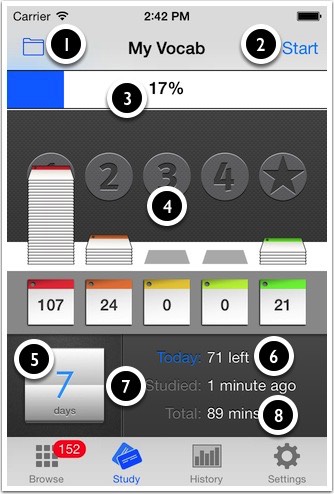
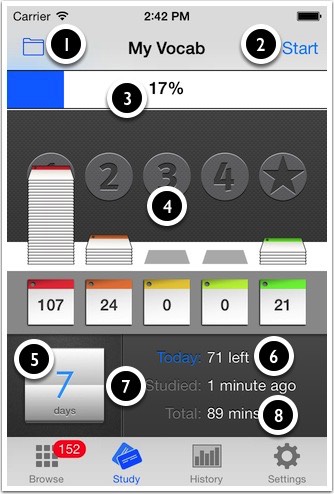
► This shows your study status for the current deck.
① Deck Chooser.
② Start studying.
③ Overall progress (percent).
④ Overall progress (colour).
⑤ Days to goal (optional). Tap to set.
⑥ Remaining correct answers required today (if goal is set).
⑦ Last time studied.
⑧ Total time studied.
① Deck Chooser.
② Start studying.
③ Overall progress (percent).
④ Overall progress (colour).
⑤ Days to goal (optional). Tap to set.
⑥ Remaining correct answers required today (if goal is set).
⑦ Last time studied.
⑧ Total time studied.
SRS Study Algorithm
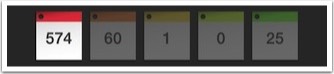
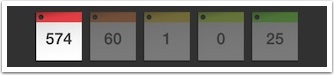
► If a sticky is answered correctly, it moves closer to green.
► If a sticky is answered incorrectly, it moves back to red.
► Uses SRS (Spaced Repetition System).
► Red = New / Green = Mastered.
► Stickies must be answered correctly 4 times in a row.
► Green stickies are eventually recycled.
► Colours can be manually changed by tapping the above or in list view.
► If a sticky is answered incorrectly, it moves back to red.
► Uses SRS (Spaced Repetition System).
► Red = New / Green = Mastered.
► Stickies must be answered correctly 4 times in a row.
► Green stickies are eventually recycled.
► Colours can be manually changed by tapping the above or in list view.
Study Mode

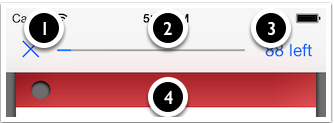
① Finish and save current study session.
② If a goal is set, this shows today's goal's progress.
③ As ②. Also, press to show the study timer.
④ Colour = current level of card. Touch here to flag.
② If a goal is set, this shows today's goal's progress.
③ As ②. Also, press to show the study timer.
④ Colour = current level of card. Touch here to flag.
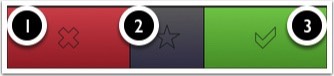
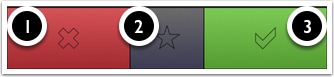
① "I don't know" moves sticky back to red. *
② "No problem" moves sticky straight to green (mastered).
③ "I know" moves sticky one colour closer to green.
* If "Pass = -1" is set in settings, this button will move the sticky one step closer to red, not all the way to red. This can make study time a little easier.
② "No problem" moves sticky straight to green (mastered).
③ "I know" moves sticky one colour closer to green.
* If "Pass = -1" is set in settings, this button will move the sticky one step closer to red, not all the way to red. This can make study time a little easier.
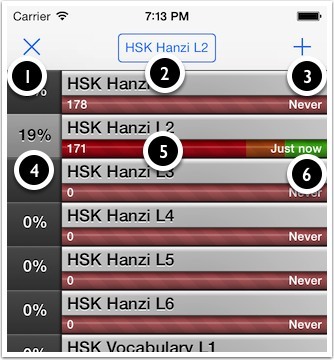
New Deck
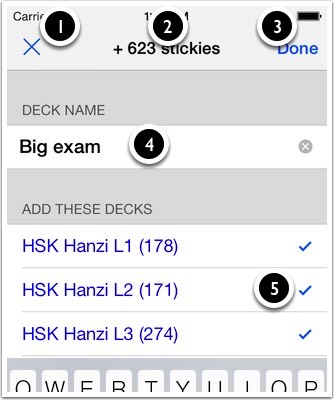
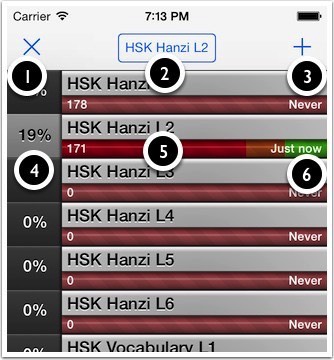
① Exit without creating new deck.
② Number of stickies to add.
③ Create deck.
④ Deck name.
⑤ Decks to combine into new deck.
② Number of stickies to add.
③ Create deck.
④ Deck name.
⑤ Decks to combine into new deck.